
Exit a Video content item
When a Video (QuickTime Movie) content item is selected from the grid view it is displayed within the iDetail through the iOS Movie Player view.
Steps to exit a Video presentation:
Tap the Video
Video controls should appear
Tab the Done text link in the top left corner
Screen will return to the grid view

Exit a PDF content item
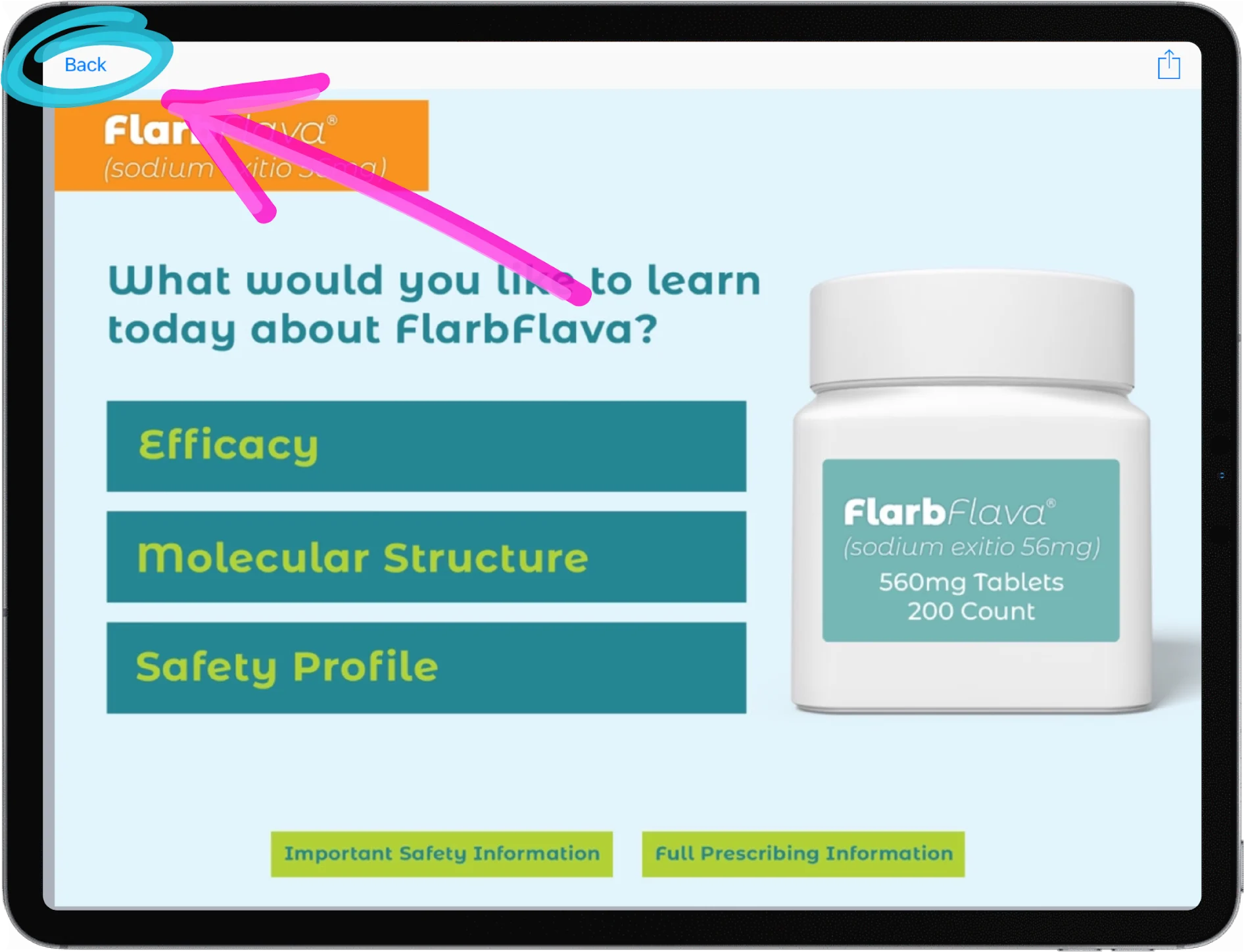
When a PDF is selected from the Grid View it is displayed within the iDetail through the iOS QuickLook view. To exit the QuickLook view, and return to the grid view, tap the Back link in the top left corner.
Steps to exit a PDF file:
Tab the Back text link in the top left corner
Screen will return to the grid view
Exit a PowerPoint content item
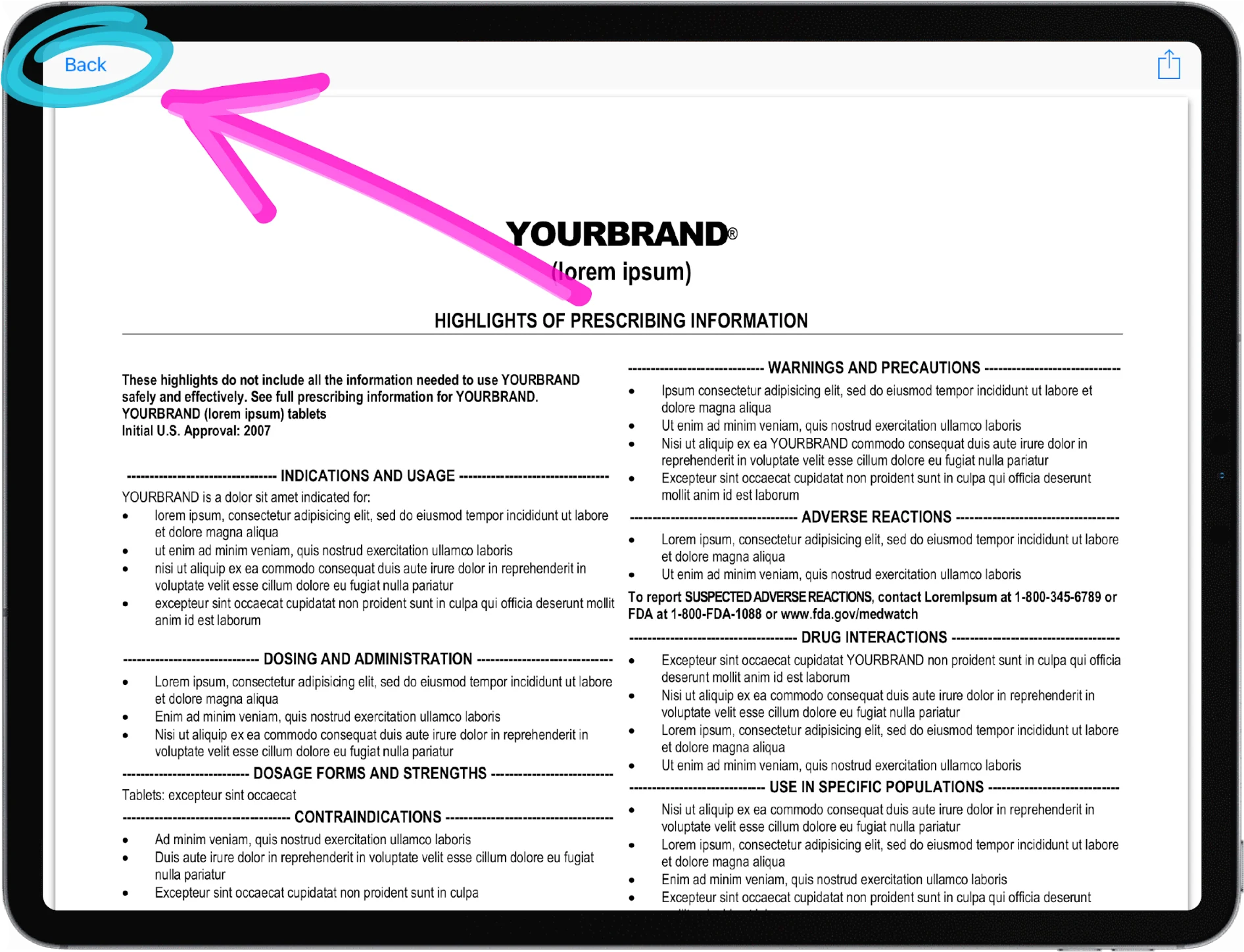
When a PowerPoint is selected from the grid view it is displayed using iOS QuickLook view. To exit the QuickLook view, and return to the grid view, tap the Back link in the top left corner.
Steps to exit a PPT presentation:
Tab the Back text link in the top left corner
Screen will return to the grid view